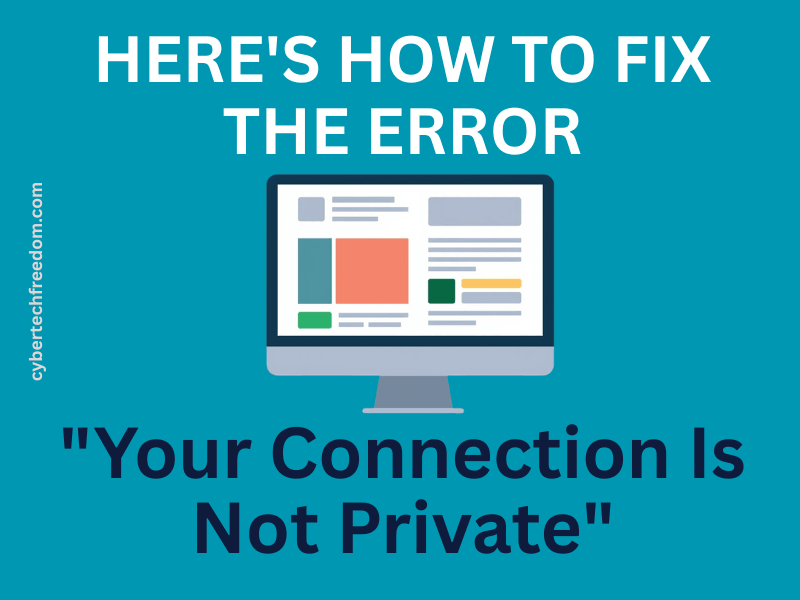

You’re trying to open a website and suddenly your browser stops you with a scary-looking warning:
“Your connection is not private. Attackers might be trying to steal your information.”
Not exactly what you wanted to see.
Your first thought might be: “Has my computer been hacked?” Thankfully, probably not.
In most cases, this warning doesn’t mean someone is stealing your information. It simply means your browser can’t confirm that it’s safe to connect to the website.
The good news is that many of these warnings are caused by simple issues, like an expired website certificate or the wrong date and time on your device.
Let’s look at what this message actually means, when you should take it seriously, and how to fix it.
“Your connection is not private” means your browser couldn’t verify the website’s security certificate. Most of the time, the problem is with the website or your connection and not your computer. Until the warning is gone, avoid entering passwords, payment details, or other personal information.
What does “Your connection is not private” mean?
Whenever you visit a website, your browser checks that it’s talking to the real website and not an imposter.
It does this by checking the website’s security certificate (sometimes called an SSL certificate).
Think of it like showing photo ID at the airport. Before you’re allowed through, someone checks that you really are who you claim to be.
A website works the same way. If the browser can’t verify the website’s identity, it displays the warning instead of opening the page.
You’ll often notice a padlock icon (or HTTPS) next to secure websites. If your browser can’t verify that secure connection, you’ll see the “Your connection is not private” warning instead.
That doesn’t automatically mean the website is dangerous. It simply means your browser couldn’t prove it was safe.
Should you be worried?
Usually, no but you should still pay attention.
I’ve seen this warning many times while helping people with computer problems. In most cases, it turned out to be something simple, like the website’s certificate expiring or the computer’s clock being incorrect.
Still, it’s worth treating the warning seriously until you know what’s causing it.
It’s usually okay to pause and investigate if:
- it’s a website you visit regularly
- the site worked yesterday
- you’re only trying to read information
- the problem appeared suddenly
Be extra careful if:
- you’ve never visited the website before
- the web address looks unusual
- the page asks you to sign in
- it’s asking for payment details
- you clicked a link from an email, text message, or social media post
If you’re unsure, it’s better to close the page than take the risk.
How to Tell If Your Computer Has Been Hacked
Why does this warning appear?
There are several common reasons, and most aren’t your fault.
- The website’s certificate has expired
- Your device’s date or time is wrong
- You’re using public Wi-Fi
- Your browser cache is causing problems
- Your antivirus, VPN, or workplace network is inspecting secure connections
- The website really does have a security problem
How to fix “Your connection is not private”
Try these steps one at a time.
After each step, refresh the page and see if the warning disappears.
1. Refresh the page
Sometimes it’s nothing more than a temporary glitch.
- Windows: Press F5
- Mac: Press Command + R
- Phone or tablet: Tap the refresh button
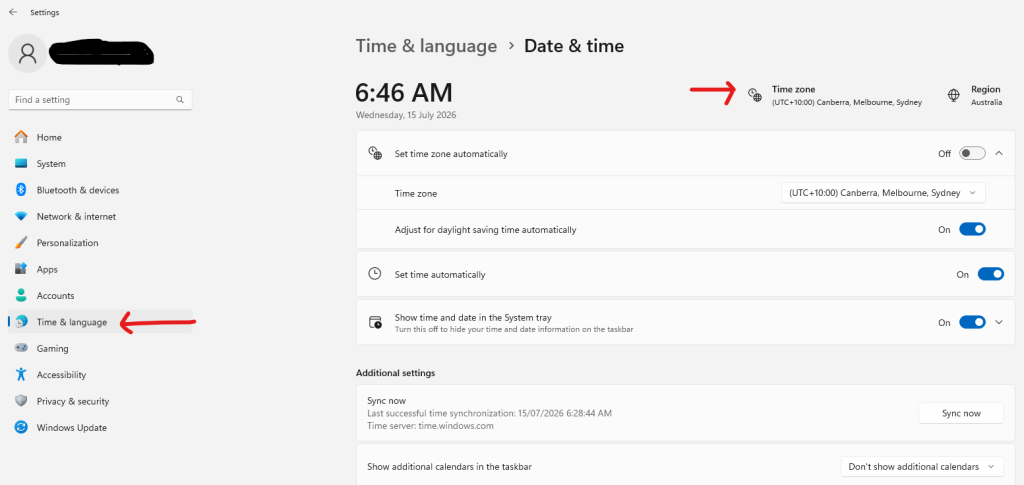
2. Check your device’s date and time
This fixes the problem more often than people realise.
WINDOWS
Right-click the clock → Adjust date and time → turn on Set time automatically.
MAC
Apple menu → System Settings → General → Date & Time → enable Set time and date automatically.
iPHONE
Settings → General → Date & Time → enable Set Automatically.
ANDROID
Settings → Date & Time → enable Automatic date and time.
3. Open the site in a private or incognito window
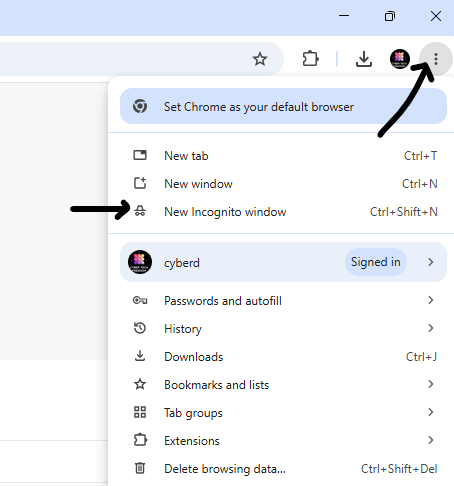
Private browsing ignores some stored browser data and extensions.
Click on 3 dots at the top right side of your screen and select new incognito window option as shown below. If the website opens normally there, the problem is probably your browser rather than the website.
4. Clear your browser cache
Old cached files and cookies can sometimes cause certificate errors, so clearing them may fix the problem.
- Open your browser, click the three dots in the top-right corner,
- then select Delete browsing data (or Clear browsing data, depending on your browser).
- Choose Cookies and other site data and Cached images and files, then clear the data.
- After that, close and reopen your browser and try visiting the website again.
Before you do this, it’s good to know what will happen:
- You’ll be signed out of most websites, so you’ll need to sign in again.
- If your browser normally remembers your passwords, make sure they’re saved or that you know them before clearing your data.
- Some websites may load a little slower the first time you visit them because your browser is rebuilding its cache.
- Your bookmarks (favorites) won’t be deleted, so you can still access your saved websites easily.
These temporary inconveniences are normal and are part of the process of removing outdated or corrupted browser data that may be causing the security warning.
5. Try a Different Browser
If Chrome shows the warning but Edge, Firefox, or Safari opens the website without any problems, the issue is likely with your browser rather than the website itself.
If that happens, you can:
- Continue using the other browser as a temporary workaround.
- Go back to the original browser and try clearing its cache and cookies.
- Make sure the browser is updated to the latest version.
- Disable browser extensions one at a time, as some security or privacy extensions can interfere with secure connections.
If the warning appears in every browser, the problem is more likely to be with the website, your network, or your device rather than the browser itself.
If you’re trying to access online banking, your email, or another website where you’ll enter personal information, don’t continue until you’ve found and fixed the cause of the warning.
6. Switch networks
If you’re on public Wi-Fi, disconnect and try using your mobile data or VPN like Surf shark instead.
If the warning disappears, the Wi-Fi network was likely causing the issue.
7. Update your browser
An outdated browser may struggle with newer website security certificates.
Make sure you’re running the latest version of Chrome, Edge, Safari, or Firefox.
Should you click “Proceed anyway”?
Sometimes browsers let you continue anyway. Just because you can doesn’t mean you should.
It may be okay only if all of these are true:
- you typed the website address yourself
- it’s a website you’ve trusted for years
- you’re only reading information
- you’re not entering passwords, payment details, or personal information
If any of those aren’t true, close the page and come back later. Your browser is trying to protect you.
How Safe Is Your Digital Life?
Take our free 2-minute Digital Safety Check and find out how well you know the everyday habits that help protect your accounts, devices and personal information.
Quick reference
| If this happens… | What you should do |
|---|---|
| Website you trust | Try the fixes above first |
| Unknown website | Close the page |
| Asking for a password | Don’t continue |
| Asking for payment details | Leave immediately |
| On public Wi-Fi | Switch to mobile data |
| Wrong date or time | Correct it and reload |
Frequently asked questions
Can I get hacked because of this warning?
Not usually. The warning itself isn’t a sign you’ve been hacked. It’s your browser warning that it can’t verify the website’s secure connection.
Why does it only happen on one website?
Most likely because there’s a problem with that website’s security certificate. If it’s expired or configured incorrectly, everyone visiting the site will see the warning.
Why do I see this on my iPhone?
The most common causes are an incorrect date and time, a network issue, or a problem with the website itself. The fixes in this guide work for iPhones too.
Why does Chrome say “Your connection is not private”?
Chrome displays this message whenever it can’t verify a website’s security certificate. Other browsers show similar warnings, just with slightly different wording.
Final thoughts
Seeing “Your connection is not private” can be unsettling, but it doesn’t automatically mean your computer or phone has been hacked.
Most of the time, the issue is something simple, like an expired website certificate, an incorrect device clock, or a temporary network problem.
The important thing is not to ignore the warning. Until you know why it’s appearing, avoid entering passwords, payment details, or any other sensitive information.
A few minutes of caution can save you a lot of trouble later.
More For your Digital safety Journey
- The Ultimate Phone Security Hub: How to Keep Your Phone Safe
- What to Do If You Clicked a Phishing Link: 7 Immediate Steps to Take
- What to Do If Your Email Has Been Hacked And What Happens Next
- Best Online Safety Gift Ideas That Actually Protect People