
Your computer is running slower than usual. A program opened that you didn’t click on. Your browser homepage changed overnight.
Any one of these on its own might be nothing. Together, they could be a sign that someone else has access to your computer.
Knowing how to tell if your computer has been hacked isn’t just for IT professionals. With hackers now targeting everyday people not just businesses, it’s one of the most useful things you can know. This guide covers the real warning signs, how to check your computer right now on both Windows and Mac, and exactly what to do if you confirm something’s wrong.
The most common signs your computer has been hacked include:
- Unknown programs
- Passwords suddenly stop working
- Browser settings change
- Webcam activates unexpectedly
- Antivirus turns off
- Friends receive messages you didn’t send
- Unusual account activity
If you notice several of these together, disconnect from the internet and run a full malware scan immediately.
1. Is it hacked or just old and slow? How to tell the difference
This is the question nobody answers properly. Most guides list “slow computer” as sign #1 of being hacked but computers slow down for dozens of innocent reasons. Before you panic, it helps to know what’s suspicious versus what’s normal.
| Probably innocent | Genuinely suspicious |
|---|---|
| Gradual slowdown over months | Sudden dramatic slowdown overnight |
| Slow on startup only | Slow all the time, even after restart |
| One app crashes occasionally | Multiple apps crashing or freezing constantly |
| Browser feels sluggish | Browser homepage changed without your input |
| Fan runs loud during updates | Fan running loud constantly with nothing open |
| Pop-ups on certain websites | Pop-ups appearing on every website or your desktop |
| Forgot your password | Password stopped working and you didn’t change it |
The key word is sudden. A computer that gradually gets slower over a year is likely aging or cluttered. A computer that suddenly behaves differently overnight especially, after clicking a link or downloading something is worth investigating immediately.
2. Warning signs your computer has been hacked
These are the signs that genuinely indicate something may be wrong not just an aging machine.
Your password suddenly doesn’t work If you try to log into your computer or an online account and your password has stopped working and you didn’t change it that’s one of the clearest signs your computer has been hacked or your account has been compromised. A hacker who gets in often changes credentials to lock you out.
Programs or apps you don’t recognise Open your list of installed programs.
On Windows: Settings → Apps → Installed apps.
On Mac: Finder → Applications.
If you see software you don’t remember installing especially, anything that appeared recently, treat it as suspicious. Hackers often install remote access tools or keyloggers disguised as system utilities.
Your webcam or microphone light turns on by itself If the indicator light next to your webcam activates when you’re not on a video call, someone may have remote access to your camera. This is a serious sign. Cover your webcam immediately and run a scan.
Your browser has changed without you touching it A homepage you didn’t set. A search engine you didn’t choose. New toolbars or extensions you never installed. Browser hijacking is a common outcome of malware infection. Hackers redirect your searches to generate ad revenue or steer you toward phishing pages.
Your friends are receiving messages you didn’t send If contacts are reporting strange emails, Facebook messages, or texts from your accounts with links or unusual requests your accounts or device may be compromised. Hackers use infected devices to spread malware to your contacts.
Antivirus software has turned itself off Sophisticated malware sometimes disables security software so it can operate without detection. If your antivirus has turned off and you didn’t do it or it won’t turn back on that’s a significant red flag.
Unexpected account activity Login alerts for devices or locations you don’t recognise. Transactions you didn’t make. Emails in your sent folder you never wrote. These are signs a hacker may already be using your accounts from your compromised device.
Your files have been encrypted or renamed If your files suddenly have strange extensions (.locked, .encrypted, .xxx) and you can’t open them, you may be the victim of ransomware malicious software that encrypts your files and demands payment for the key. Do not pay the ransom.
3. How to check if your computer has been hacked: Windows
If you’re concerned, these are the steps to check your Windows PC right now.
Step 1: Check Task Manager for suspicious processes
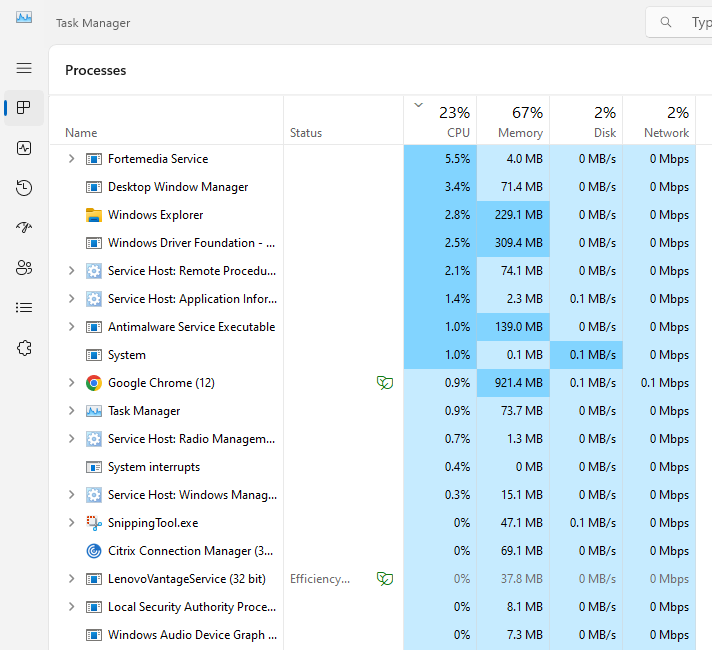
Task Manager shows every program and process running on your computer, including ones running silently in the background.
- Press Ctrl + Shift + Esc to open Task Manager
- Click the Processes tab
- Click the CPU column header to sort by usage. Processes using high CPU when you’re not doing anything demanding are worth investigating
- Also click the Network column, if something is sending large amounts of data when you’re not actively using the internet, that’s a red flag
- If you see a process name you don’t recognise, right-click it and select Search online. Windows will search for information about it
What to look for: unfamiliar process names with high resource usage, especially ones that appear to be connecting to the internet. Note that Windows has many legitimate background processes. Look for things that are obviously unrelated to Microsoft or any software you use.
Step 2: Check your startup programs
Malware often installs itself to run automatically when your computer starts.
- In Task Manager, click the Startup apps tab
- Look through the list for anything unfamiliar especially, items with no publisher name or a vague description
- Right-click anything suspicious and select Search online to verify what it is
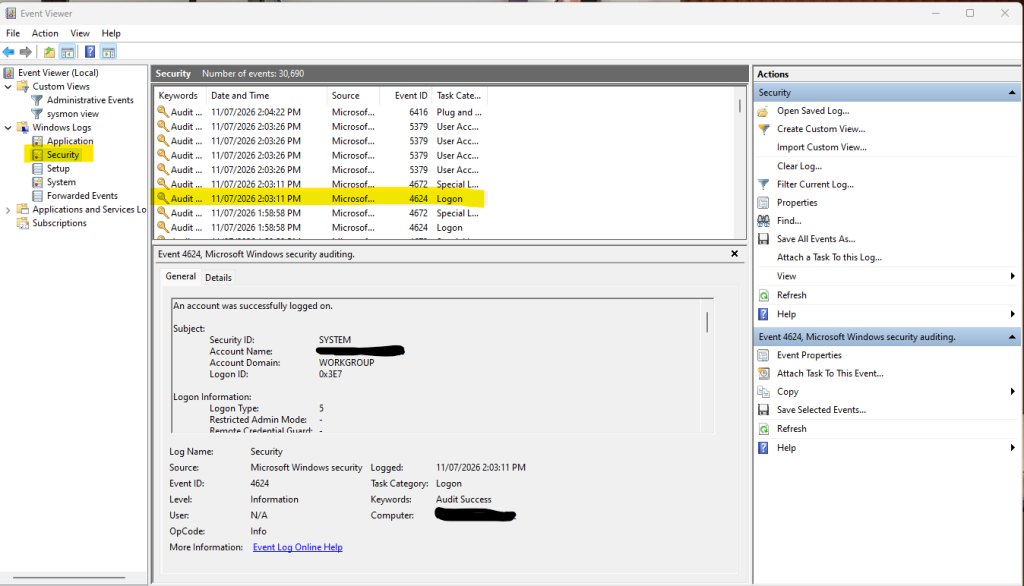
Step 3: Check Event Viewer for suspicious logins
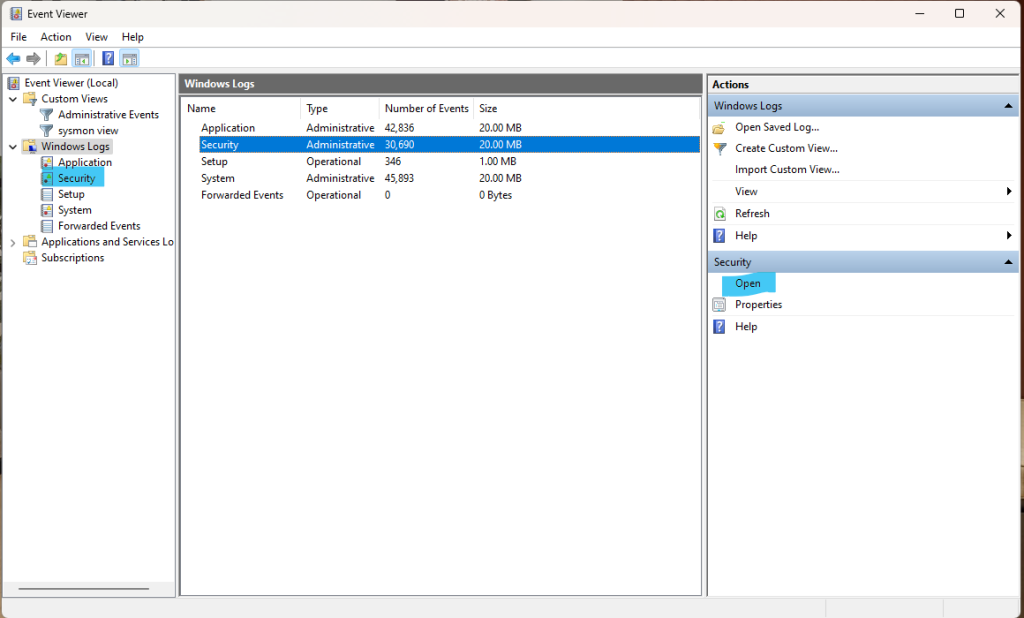
Event Viewer keeps a log of everything that happens on your Windows PC, including every login attempt.
- Press Windows key + X and select Event Viewer
- Go to Windows Logs → Security → click Open
- Look for Event ID 4624 (successful login) and Event ID 4625 (failed login)
- Check the timestamps. Logins that happened when your computer was switched off, or at unusual times you weren’t using it, are suspicious
Step 4: Run Windows Defender full scan
- Open Windows Security (search for it in the Start menu)
- Click Virus & threat protection
- Click Scan options
- Select Full scan and click Scan now
A full scan checks every file on your computer. It takes longer than a quick scan but is far more thorough. If anything is found, Windows Defender will quarantine it and show you a report.
Step 5: Run Malwarebytes as a second opinion
Windows Defender is good but not perfect. Malwarebytes Free catches things Defender misses particularly adware, spyware, and certain types of rootkits.
Download Malwarebytes from malwarebytes.com, install it, and run a full scan. It’s free for on-demand scanning.
4. How to Tell if your computer has been hacked : Mac
Macs have a reputation for being more secure than Windows PCs and while that’s historically true, it’s no longer as clear-cut. Mac malware has increased significantly as Apple computers have grown in popularity.
Step 1: Check Activity Monitor
Activity Monitor is the Mac equivalent of Windows Task Manager.
- Open Finder → Applications → Utilities → Activity Monitor
- Click the CPU tab and look for processes using high CPU when you’re not doing anything demanding
- Click the Network tab and look for processes sending large amounts of data
- If you see something unfamiliar, Google the process name to check whether it’s legitimate
These are programs that run automatically when you log into your Mac.
- Go to System Settings → General → Login Items & Extensions
- Look through the list under “Open at Login” for anything you don’t recognise
- Select anything suspicious and click the minus (-) button to remove it
Step 3: Check for unknown browser extensions
In Safari: Safari menu → Settings → Extensions
In Chrome: Chrome menu → Extensions → Manage Extensions
Look for extensions you didn’t install. Remove anything unfamiliar, browser extensions have full access to everything you do in your browser.
Step 4: Run a Mac malware scan
macOS has built-in malware protection (XProtect and Gatekeeper) but they don’t catch everything. For a second opinion scan, Malwarebytes for Mac is free and reliable. Download from malwarebytes.com and run a full scan.
5. What to do if your computer has been hacked
If the checks above have confirmed something is wrong or you’re still not sure but something feels off. Work through these steps in order.
Step 1: Disconnect from the internet immediately
Turn off your Wi-Fi or unplug your ethernet cable. This stops a hacker from continuing to access your computer remotely and prevents malware from sending your data elsewhere. Do this before anything else.
Step 2: Change your passwords from a different device
Don’t change passwords on the compromised computer, a keylogger could capture them as you type. Use your phone or a different computer. Change passwords for:
- Your email account first because this is the master key to everything else
- Your bank and financial accounts
- Any account where you have saved payment details
- Social media accounts
Use the passphrase method for each new password and don’t reuse any of them. Check this post on how to create a strong password
Step 3: Run a full antivirus scan
Once disconnected from the internet, run a full scan with Windows Defender or Malwarebytes (steps covered above). Let the scan complete fully before reconnecting to the internet.
Step 4: Check your accounts for damage
Look through your email sent folder, bank statements, and social media activity for anything you didn’t do. If you find unauthorized transactions, contact your bank immediately. If you find emails you didn’t send, warn your contacts. How to protect your email from cyber criminals?
Step 5: Update everything and consider a factory reset
Once the scan is clean, update your operating system and all software, many attacks exploit unpatched vulnerabilities. If malware keeps returning after scanning, a factory reset is the cleanest solution. Back up your important files to an external drive first and scan the backup before opening anything from it.
The “Your Connection Is Not Private“ warning can be alarming but is it a sign you’ve been hacked? Here’s what it means and the steps you should take next.
How Safe Is Your Digital Life?
Take our free 2-minute Digital Safety Check and find out how well you know the everyday habits that help protect your accounts, devices and personal information.
6. How to stop your computer from being hacked in the future
Three quick wins:
- Turn on automatic updates (most hacks exploit unpatched software),
- Make sure your firewall is on:
- Windows Security → Firewall & network protection
- Mac: System Settings → Network → Firewall
- Only download software from official sources.
The bigger habits are strong unique passwords and not clicking suspicious links and they are covered in detail here: How to create a strong password and how to spot a phishing email.
One more layer: monitor your personal information
Knowing how to tell if your computer has been hacked is the first step. But by the time signs appear, a hacker may have already been in your system for days or weeks. Long enough to copy passwords, financial details, and personal information.
Aura monitors your personal data across the dark web and breach databases, and alerts you the moment your information appears somewhere it shouldn’t, giving you the chance to act before the damage spreads.
Not sure if what you’re seeing is a hack or just a normal computer issue? Start with the Task Manager check on Windows or Activity Monitor on Mac. If you see a process you can’t explain that’s using high CPU or sending network data when you’re not active that’s your signal to run a full scan and change your passwords.
More on your Safety Journey
How to avoid online shopping scams || identity theft prevention || Phone Security || 7 Ways Hackers Spy on your Phone

Great tips! Thank you for this. Definitely sending this to some of the elderly folk in our fam!
As a person with an IT background this is great information. It brings awareness that is much needed. Too many take things for granted. Can you write a post about how seniors can protect themselves? It seems to be needed. I’m hearing alot about how older people are being taken advantage of. This was a good post. Thanks.
Excellent article! Cybersecurity is something everyone should take seriously, and I like how you broke down the warning signs into easy to understand language. It’s a great reminder that recognizing the signs early can help prevent much bigger problems later.
This article is incredibly helpful! I love how you clearly broke down the difference between a computer just being old and slow versus actual signs of being hacked. The emphasis on a “sudden” change in performance makes so much sense and really helps prevent unnecessary panic. Saving these step-by-step Windows and Mac checks for future reference!