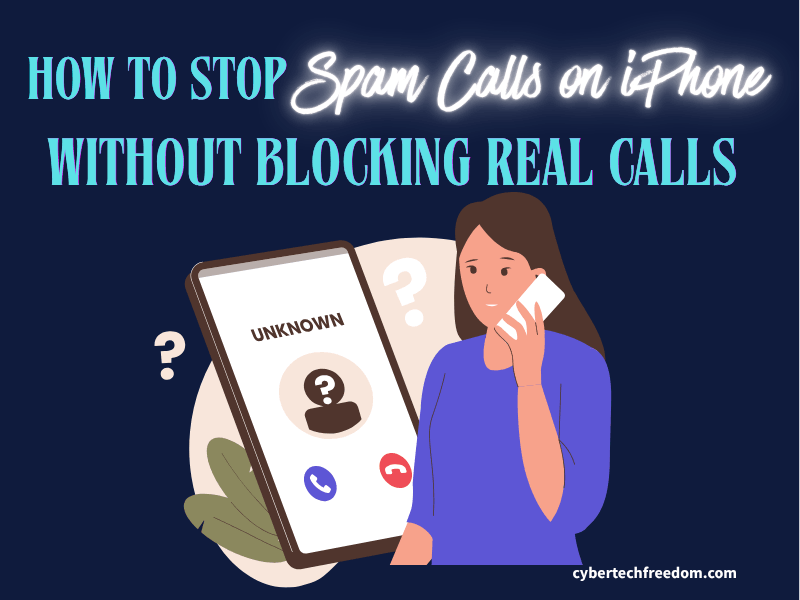

Spam calls have become one of the most frustrating parts of owning a phone. Robocalls, scams pretending to be banks or government agencies, telemarketers pushing products you don’t need — they always seem to catch you at the worst moment.
The good news? You can stop spam calls on your iPhone without accidentally blocking real callers — like your doctor, your kids’ school, or a delivery driver. In this complete step-by-step guide, you’ll learn exactly how to stop spam calls on iPhone using free built-in settings, your carrier, and trusted apps — fast.
Table of Contents
- Why Am I Getting So Many Spam Calls on My iPhone?
- How to Stop Spam Calls on iPhone Without Blocking Real Callers
- Turn On Silence Unknown Callers (The Quick Fix)
- Block Specific Numbers (Repeat Offenders)
- Enable Call Blocking & Identification
- Australian iPhone Users — Free Carrier Tools
- Turn On Carrier Spam Protection (Free!)
- Use Trusted Call-Blocking Apps
- How to Filter Spam Text Messages on iPhone
- Use Focus Mode to Block Unwanted Calls
- Update Your iPhone Regularly
- Don’t Share Your Real Number Everywhere
- Report Spam Calls
- Bonus: Deal with Caller ID Spoofing
- Is There a Permanent Solution to Stop Spam Calls?
- Final Checklist — Stop Spam Calls Fast
- FAQs
Why Am I Getting So Many Spam Calls on My iPhone?
Spammers can get your number through many channels you might not expect:
- Data breaches from businesses you’ve signed up with
- Websites where your phone number is publicly visible
- Random number generation (robocalling dials numbers automatically)
- Buying consumer phone lists from data brokers
- Your iCloud email address — spammers cross-reference leaked Apple IDs to find linked phone numbers
- App Store account data linked to your phone number
Many scams also spoof local Australian numbers, making calls appear to come from your suburb or a trusted business. It’s designed to trick you into picking up.
But here’s the thing: with the right iPhone settings, you can cut 90% of these calls immediately without missing calls that matter.
How to Stop Spam Calls on iPhone Without Blocking Real Callers
This is the question most guides don’t answer properly. People are worried: “What if I miss a call from my doctor, a job offer, or my child’s school?”
The good news is you have options that filter spam without hard-blocking anyone:
- Silence Unknown Callers — sends unknown numbers to voicemail, not blocked. They can still leave a message and you can call back.
- Call-blocking apps like Hiya — these flag spam visually on your screen so you can decide before answering. They don’t auto-block unless you set them to.
- Focus Mode — lets only your chosen contacts ring through during work hours or at night. Everyone else goes to voicemail.
- Carrier spam filtering — your carrier (Telstra, Optus, Vodafone) identifies and silences spam before it even reaches your phone.
| Pro Tip Add essential contacts like your GP, dentist, school, employer, bank to your iPhone Contacts. Any of these methods will then always let those numbers ring through. |
Turn On Silence Unknown Callers (The Quick Fix)
Settings → Phone → Silence Unknown Callers → ON
This sends calls not in your Contacts, Mail, or Messages straight to voicemail. They are NOT blocked, callers can still leave a voicemail and you can call back.
Benefit: Stops most robocalls and spam instantly.
Downside: Genuine calls from new numbers (delivery drivers, tradies, recruiters) may be silenced. Check your voicemail regularly.
| Important This feature works on iPhone 6 and later running iOS 13 or above which includes iPhone 14, 15, and 16. If you’re on an older iOS version, update first (Settings → General → Software Update). |
Block Specific Numbers (Repeat Offenders)
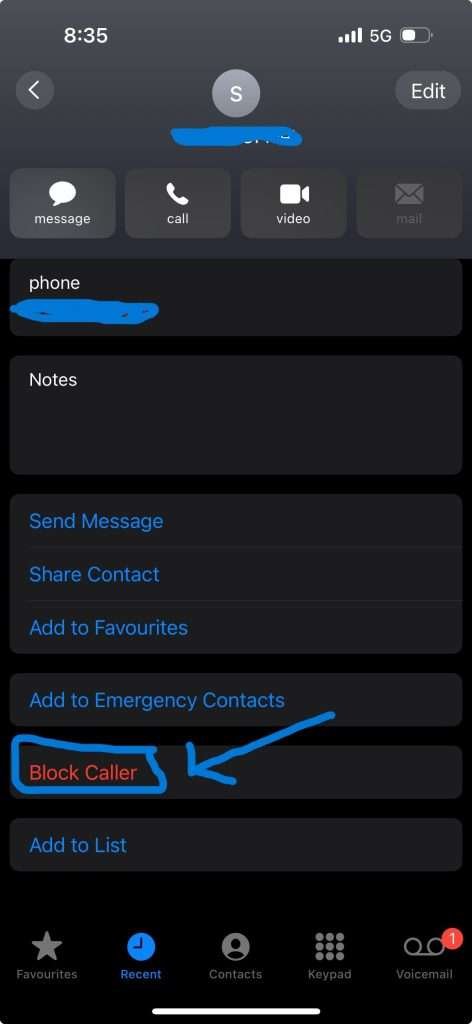
If the same spammer keeps calling, block them directly:
- Open the Phone app and tap Recents
- Tap the (i) icon next to the number
- Scroll down and tap Block This Caller → Confirm
This is best used for numbers that slip through your other filters like persistent telemarketers or known scam lines.
Enable Call Blocking & Identification
Settings → Phone → Call Blocking & Identification
This setting connects iOS to third-party spam databases. Once you install a carrier app or call-blocking app, you enable it here and iPhone will automatically look up caller identity before your phone rings.
Enable any installed apps or carrier protections here. This is the central hub that makes all third-party spam tools work.
Australian iPhone Users — Use These Free Carrier Tools
If you’re in Australia, your carrier offers free spam blocking and most people have no idea it exists.
Here’s what to get:
• Telstra → Download the Telstra Call Protect app (free). Automatically labels and blocks scam-likely calls.
• Optus → Enable Call Filter in the My Optus app (free basic tier, paid for extra features).
• Vodafone → Activate Call Filter via the My Vodafone app (free).
After enabling your carrier app,
go to: Settings → Phone → Call Blocking & Identification → toggle your carrier app ON.
Carriers block spam before it even reaches your phone; making this one of the most effective free options available.
Turn On Carrier Spam Protection (Free!)
Here’s a full breakdown of carrier spam tools by region:
| Region | Carrier / Feature Name | Cost |
| Australia | Telstra Call Protect / Optus Call Filter / Vodafone Call Filter | Free (paid tiers available) |
| USA | AT&T ActiveArmor / Verizon Call Filter / T-Mobile Scam Shield | Free basic plans |
| UK | EE / O2 / Vodafone filter services | Free |
Steps to activate:
- Download your carrier’s app from the App Store
- Log in and enable spam call blocking in the app
- Go to Settings → Phone → Call Blocking & Identification and toggle your carrier app ON
Use Trusted Call-Blocking Apps
If you want an extra layer of protection beyond your carrier, these apps are well-regarded:
- Truecaller — large global spam database, identifies most unknown callers
- Hiya — flags spam visually without auto-blocking. Good for users worried about missing real calls
- RoboKiller — auto-blocks robocalls and can answer them with fake responses (paid)
Benefits of these apps: Identifies spam before you pick up, auto-blocks known scam numbers, updates spam lists daily.
After installing: Settings → Phone → Call Blocking & Identification → Toggle the app ON
‘For Android users in your household, see our guide on How to Block Spam Calls on Android
| Important Only grant necessary permissions – phone access is required, but be cautious about apps that also request access to your contacts list or location unless you understand why. Read the privacy policy before installing. |
How to Filter Spam Text Messages on iPhone
Spam calls and spam texts often go hand in hand, scammers frequently send a text before calling to check if your number is active.
Settings → Messages → Filter Unknown Senders → ON
Once enabled, your Messages app separates conversations into:
- Known Senders — contacts in your phone
- Unknown Senders — silenced and separated (not deleted)
- Junk — messages your carrier or Apple has flagged as spam
If a message appears to be spam, tap Report Junk to help Apple and your carrier block that sender for others too.
Use Focus Mode to Block Unwanted Calls
Focus Mode lets you control exactly who can reach you during specific times — perfect for nights, work hours, or weekends.
- Go to Settings → Focus → Do Not Disturb
- Tap Allowed People and add family members, your employer, and emergency contacts
- Schedule it for sleep hours, or activate it manually whenever you need peace
During Focus Mode, only your selected contacts can ring through. Everyone else including spam callers goes to voicemail.
| Pro Tip Set up a ‘Work’ Focus and a ‘Sleep’ Focus with different allowed contacts. Your Sleep Focus might only allow family; your Work Focus might add your boss and key clients. |
Update Your iPhone Regularly
Settings → General → Software Update
Apple continually improves spam protection with each iOS update including better Caller ID systems, enhanced spam filtering, and improved carrier compatibility.
This applies to all recent iPhone models including iPhone 14, 15, and 16. If you’re on an older device, staying updated is even more important as older iOS versions have fewer built-in protections.
Always run the latest iOS version for the best protection.
Don’t Share Your Real Number Everywhere
Fewer places with your number = fewer spam calls. Here’s how to reduce your exposure:
- Use a secondary number (Google Voice or a Burner number) for job ads, online marketplaces, and social profiles
- Don’t post your phone number publicly on Facebook, LinkedIn, or Gumtree
- During signup on websites, uncheck any box that says ‘I agree to receive marketing calls or SMS’
- When selling on Facebook Marketplace or Gumtree, use their in-app messaging instead of giving out your number
Reducing exposure is a long-term strategy — it won’t stop existing spam calls immediately but significantly reduces new ones over time.
Report Spam Calls
Reporting spam calls helps carriers and regulators shut down these operations for everyone — not just you.
- Forward spam SMS to 7726 (SPAM) — supported by most Australian carriers
- Report in your carrier app — Telstra Call Protect and Optus Call Filter both have one-tap reporting
- Mark blocked calls as spam in your call-filtering app (Hiya, Truecaller, etc.)
- Report to the ACMA (Australian Communications and Media Authority) at acma.gov.au for persistent scammers
If you’ve already received a suspicious call and think it might be a scam, visit our Scam Hub for guidance on what to do next.
Bonus: Deal with Caller ID Spoofing
Caller ID spoofing is when scammers fake the number that appears on your screen, making it look like it’s coming from a local number, a government agency, or even your own number.
Signs of spoofing:
- Your own number appears as the caller
- A suspiciously local number you don’t recognise
- A number that looks like a government agency (ATO, Medicare, police)
If you suspect spoofing: don’t answer. Instead:
- Notify your carrier
- Report to the ACMA (Australia) at acma.gov.au
- If it claimed to be the ATO or Medicare, report to Scamwatch at scamwatch.gov.au
Regulators use these reports to identify and shut down spoofing operations.
Is There a Permanent Solution to Stop Spam Calls?
This is the question everyone wants answered and the honest answer is: not completely. But you can get very close.
Here’s why a 100% permanent fix doesn’t exist yet:
- Spammers constantly rotate numbers, making block lists outdated quickly
- Caller ID spoofing lets them fake numbers that look legitimate
- No single app, setting, or carrier tool catches everything
However, combining these three things gets most people to 90%+ spam-free:
- Silence Unknown Callers (built-in, free)
- Your carrier’s free spam filter (Telstra Call Protect / Optus Call Filter / Vodafone Call Filter)
- A call identification app like Hiya (free tier available)
Apple, carriers, and regulators are also introducing stronger caller authentication technology (called STIR/SHAKEN) that makes spoofing harder. iOS updates continue to improve these protections — another reason to always stay updated.
Final Checklist — Stop Spam Calls Fast
Do at least 3 of these and you’ll see 80–90% fewer spam calls:
| Action | Result | Cost |
| Silence Unknown Callers ON | Stops most robocalls instantly | Free (built-in) |
| Block numbers from Recents | Stops persistent repeat offenders | Free (built-in) |
| Enable Carrier Spam Filter (AU: Telstra/Optus/Vodafone) | Blocks calls at the network level | Free |
| Install a call-blocking app (Hiya recommended) | Better caller ID + visual spam flagging | Free tier available |
| Filter Unknown Messages ON | Stops spam texts before they start | Free (built-in) |
| Set up Focus Mode for sleep/work hours | Only your chosen contacts ring through | Free (built-in) |
| Update iOS regularly | Ongoing improvements to spam filtering | Free |
FAQs – How to Stop Spam Calls on iPhone Without Blocking
Q: Does the iPhone have a built-in spam blocker?
Yes — iPhones have two built-in tools. Silence Unknown Callers (Settings → Phone) sends unknown numbers to voicemail automatically. Call Blocking & Identification (Settings → Phone) connects to third-party and carrier spam databases. Neither is a complete blocker on its own, but together with a carrier app they stop most robocalls.
Q: How do I block spam calls on iPhone for free?
Use these three free options together: (1) Turn on Silence Unknown Callers in Settings → Phone. (2) Download your carrier’s free app — Telstra Call Protect, Optus Call Filter, or Vodafone Call Filter for Australian users. (3) Install Hiya (free tier) and enable it under Settings → Phone → Call Blocking & Identification. This combination is free and effective.
Q: How do I stop spam calls on iPhone without blocking real callers?
Use Silence Unknown Callers — it sends unknown numbers to voicemail rather than hard-blocking them. Callers can still leave a message and you can call back. Pair this with a visual identification app like Hiya, which shows you a ‘Potential Spam’ label before you answer so you can decide yourself.
Q: Is there a permanent solution to stop spam calls on iPhone?
Not completely — spammers rotate numbers and use spoofing to bypass blocklists. However, combining Silence Unknown Callers + your carrier’s free spam filter + a call identification app gets most people to 90%+ spam-free. Apple continues to improve protections with each iOS update.
Q: Does this work on iPhone 16? What about older models?
Yes — Silence Unknown Callers, Call Blocking & Identification, and Focus Mode all work on iPhone 6 and later running iOS 13 or above. This includes iPhone 14, 15, and 16. If you’re on an older iOS version, go to Settings → General → Software Update first.
Q: What is the 662 code for blocking spam calls?
The #662# code is a T-Mobile USA feature (in the US) that activates Scam Block on your account — it’s not an iPhone setting, it’s a carrier-level network code. Australian users don’t use this code. In Australia, the equivalent is downloading your carrier’s spam-blocking app (Telstra Call Protect, Optus Call Filter, or Vodafone Call Filter) instead.
Q: Will Silence Unknown Callers block delivery or job calls?
Possibly — unknown numbers (delivery drivers, recruiters, new contacts) will go to voicemail rather than ringing. Check your voicemail regularly and add important businesses like your GP, dentist, and employer to your Contacts so they always ring through.
Q: Are call-blocking apps safe?
Yes — if you stick to reputable apps (Hiya, Truecaller, RoboKiller) and only grant the permissions they actually need (phone access). Be cautious about apps that ask for full contacts sync or location access unless you understand why. Always read the privacy policy before installing.
Q: Can I still receive emergency calls?
Yes. Emergency services (000 in Australia) always go through regardless of any spam blocking settings or Focus Mode configurations.
Q: Can Apple stop caller ID spoofing completely?
Not yet — but Apple, carriers, and regulators are rolling out stronger caller authentication technology (STIR/SHAKEN) that makes spoofing significantly harder. iOS updates continue to improve these protections, which is another reason to stay updated.
More on Scam and Phishing
Everything you need to know about Phone Safety in our Phone Hub ||
Check all the tools you need to keep your digital life safe in out Family Safety Toolbox.
Explore our curated Family safety toolbox ; free cybersecurity tools and trusted products that help protect your data, prevent identity theft, and keep your digital life safe at home or on the go.
Lets Stay Safe!!
Follow our Facebook Page and YouTube Channel for quick updates and bite-sized tips to keep your data and privacy secure.