
Every time you connect to public Wi-Fi, your internet traffic passes through a network you don’t control. At an airport, hotel, café, or shopping center, that means other people and sometimes the network owner may be able to monitor parts of your online activity. That’s where a VPN helps.
A VPN is the most practical tool most people can use to push back against that. But knowing how to use a VPN for security properly, not just switching it on and hoping for the best, makes the difference between real protection and a false sense of safety.
This guide covers everything: what a VPN actually does, how to set one up step by step, which settings matter, and when you genuinely need it versus when you don’t.
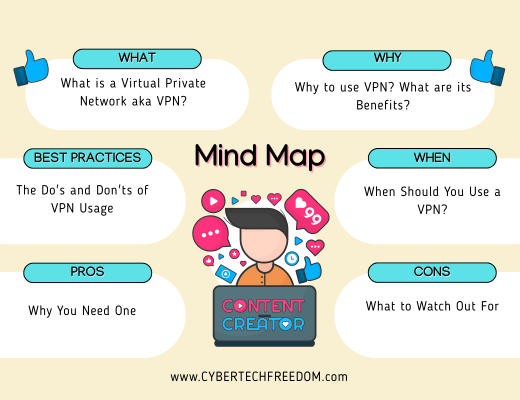
What Is a VPN and How Does It Work?
A VPN (Virtual Private Network) creates an encrypted tunnel between your device and the internet.
Think of the internet as a busy highway where everyone can see inside your car. A VPN builds a sealed, tinted vehicle around you. Traffic is still moving but nobody outside can see what’s inside.
Here’s what that means practically:
- Your data is encrypted. Hackers, advertisers, and your Internet Service Provider (ISP) can’t read what you’re sending or receiving.
- Your IP address is hidden. Websites see the VPN server’s location, not yours.
- Your location is masked. You can appear to browse from a different country, which unlocks geo-restricted content.
What a VPN doesn’t do: it won’t stop malware, block phishing emails, or make you invisible to law enforcement. It’s a privacy tool, not a magic shield.
Do You Actually Need a VPN?
Short answer: probably yes, but it depends on how you use the internet.
You genuinely benefit from a VPN if you:
- Use public Wi-Fi regularly (cafés, airports, hotels)
- Travel frequently and want to access home banking or streaming securely
- Work remotely and handle sensitive company data
- Want to stop your ISP from selling your browsing data
- Access region-locked content
You might not need a VPN urgently if you only ever use your home network, don’t handle sensitive data online, and aren’t particularly concerned about ISP tracking. That said, for most everyday users, the peace of mind is worth it especially if you’re also protecting children’s devices on the same household account.
The Honest Pros and Cons of Using a VPN
Before committing to a provider, here’s what to expect – good and bad.
Why a VPN is worth it
Security on public Wi-Fi. This is the biggest one. Public networks in cafés, airports, and hotels are shared spaces. Anyone on the same network could potentially intercept unencrypted traffic. A VPN makes your connection unreadable. Read our full guide on how to use public Wi-Fi safely
Privacy from your ISP. Without a VPN, your Internet Service Provider can see every site you visit. Many sell that data to advertisers. A VPN prevents this.
Bypassing geo-restrictions. Travelling and can’t access your usual streaming library? A VPN lets you connect via a server in your home country.
Avoiding bandwidth throttling. Some ISPs slow your connection when they detect heavy streaming or gaming. Encryption hides your activity and prevents this.
What a VPN won’t fix?
Speed. Because your data travels through an extra server and gets encrypted, there’s a slight speed trade-off. A good paid VPN minimises this, but it’s real.
Complete anonymity. A VPN hides your IP address and encrypts traffic. It doesn’t make you anonymous if you’re logged into Google or Facebook those platforms still track your account activity.
Malware and phishing. A VPN protects your connection, not your behaviour. If you click a malicious link in an email, the VPN won’t save you. This is why combining a VPN with good digital habits matters.
VPN blocks. Some platforms actively block known VPN IP addresses. Banking apps and streaming services are the most common culprits.
VPN vs Proxy vs Incognito Mode
This is one of the biggest beginner questions.
| Feature | VPN | Incognito | Proxy |
|---|---|---|---|
| Hides IP | ✅ | ❌ | Sometimes |
| Encrypts traffic | ✅ | ❌ | Usually no |
| Stops ISP seeing browsing | ✅ | ❌ | ❌ |
| Private browsing history | ❌ | Local only | ❌ |
How to Use a VPN for Security: Step-by-Step Setup
Step 1: Choose the Right VPN Provider
This is the most important decision. The wrong VPN can actually make your privacy worse, some free VPNs log and sell your data to cover their costs.
Look for these features in any provider you consider:
- Strict no-logs policy — they don’t record what you do online. Independent audits confirming this are a major plus.
- Strong encryption — AES-256 is the current standard. WireGuard is a newer, faster protocol also worth looking for.
- Kill switch — automatically cuts your internet if the VPN connection drops, so your real IP never leaks accidentally.
- Reputation and transparency — look for providers with a clear privacy policy and a track record of resisting data requests.
Our recommendation for most users: Surfshark covers unlimited devices on a single plan laptop, phone, tablet, kids’ devices, all protected under one subscription. It also includes a Camouflage Mode that disguises VPN traffic as regular browsing, which helps on networks that try to block VPNs.
Other reputable options: NordVPN (excellent for reliability and speed), ProtonVPN (strong privacy credentials, genuinely usable free tier), Mullvad (privacy-focused, no account required).
On free VPNs: ProtonVPN is the only free VPN worth trusting. Every other “unlimited free VPN” is either severely limited or monetising your data. If you’re not paying, you’re the product.
Step 2: Download and Install the App
Every reputable provider offers dedicated apps for Windows, macOS, Android, and iOS. Download only from the official website or your device’s app store never from a third-party site.
Installation is straightforward: download, sign in with your account, and the app handles the rest.
Step 3: Choose a Server
When you open the app for the first time, you’ll be asked to choose a server location. Here’s the simple rule:
- For security on public Wi-Fi: choose the nearest server to your physical location. Closer servers mean faster speeds.
- For accessing geo-restricted content: choose a server in the country where the content is available.
- For maximum speed: most apps have a “fastest server” or “auto-select” option, use it when speed matters more than location.
Step 4: Turn On the Right Settings
Before you start browsing, go into your VPN app’s settings and enable:
Kill Switch: non-negotiable. If your VPN connection drops mid-session, a kill switch cuts your internet entirely rather than letting your real IP leak. Turn this on and leave it on.
Auto-Connect on Public Networks: this automatically activates the VPN whenever you join a public Wi-Fi network. Removes the risk of forgetting to turn it on.
Protocol selection: if you have the option, WireGuard is currently the best balance of speed and security. OpenVPN is a solid alternative if WireGuard isn’t available.
Step 5: How to Know Your VPN is Working
Before trusting your VPN with anything sensitive, confirm it’s actually running. Visit whatismyip.com if the location shown is different from where you physically are, your VPN is working correctly.
While you’re there, run a DNS leak test at browserleaks.com. If your real IP address shows up in the results, your VPN has a DNS leak and needs to be reconfigured or switched.
VPN Protocols Explained Simply
You’ll see these terms in your VPN app settings. Here’s what they actually mean:
| Protocol | What it is | Best for |
|---|---|---|
| WireGuard | Newest, fastest, highly secure | Everyday use, best default choice |
| OpenVPN | Older, very reliable, slightly slower | When WireGuard isn’t available |
| IKEv2 | Fast reconnection, good for mobile | Switching between Wi-Fi and mobile data |
| L2TP/IPSec | Outdated, avoid if possible | Nothing, use WireGuard or OpenVPN instead |
Most users never need to change this manually. But if you’re experiencing slow speeds or connection issues, switching protocol is the first thing to try.
When Should You Use a VPN?
A common mistake is running a VPN constantly and wondering why your internet feels slow. Here’s a smarter approach:
Always use a VPN when:
- Connected to public Wi-Fi anywhere (cafés, airports, hotels, libraries)
- Logging into banking or financial accounts on any network you don’t control
- Using work accounts remotely
- Travelling internationally
Use a VPN when it’s useful:
- Accessing streaming content from another country
- Downloading large files (to avoid ISP throttling)
- Browsing on a network managed by someone else (a workplace, school, or shared accommodation)
You can skip the VPN when:
- On your own trusted home network doing casual browsing
- Streaming on your home connection where speed matters more than privacy
- Using mobile data for quick tasks (mobile data is harder to intercept than public Wi-Fi)
| Always | Usually | Optional |
| Public Wi-Fi | Working remotely | Home Wi-Fi |
| Hotels | Banking overseas | Streaming |
| Airports | Travel | |
| Cafes | Shared accommodation |
Is a Free VPN Safe?
This question comes up constantly, so here’s the direct answer: most free VPNs are not safe.
Running a VPN service costs money for servers, bandwidth, staff. Free VPN providers have to cover those costs somehow. The most common method is logging your browsing data and selling it to advertisers. That’s the opposite of what a VPN is supposed to do.
The one exception worth noting is ProtonVPN’s free tier. It’s genuinely free, genuinely no-logs, and based in Switzerland under strong privacy laws. The catch is slower speeds and limited server locations but it’s trustworthy, which most free VPNs aren’t.
Can Kids Use a VPN?
Yes, and for families, a VPN is worth considering for children’s devices too.
A VPN on a child’s device protects them on school Wi-Fi, friend’s home networks, and public hotspots. It also prevents ISP-level tracking of their browsing activity. It won’t replace parental controls or content filters, but it adds a meaningful privacy layer.
Surfshark’s unlimited-device plan makes this practical, one subscription covers every device in the household without an extra cost per device.
VPN Best Practices: The Do’s and Don’ts
Do:
- Use a paid, reputable provider with a verified no-logs policy
- Enable the kill switch always
- Keep your VPN app updated
- Combine your VPN with strong passwords and multi-factor authentication
- Test for DNS leaks after setup
Don’t:
- Trust unlimited free VPNs
- Assume a VPN makes you immune to phishing or virus
- Leave your VPN running on your home network when speed is more important than privacy
- Download VPN apps from anywhere other than the official source- fake VPN
- Forgetting to enable Kill Switch
- Connecting to a server on the other side of the world
The Bottom Line
Knowing how to use a VPN for security properly isn’t complicated but it does require more than just installing an app and forgetting about it. Choose a reputable paid provider, enable the kill switch, set it to auto-connect on public networks, and verify it’s working before you trust it with anything sensitive.
A VPN is your digital seatbelt. It won’t prevent every problem but it significantly reduces the damage when something goes wrong. And like a seatbelt, the habit of using it consistently matters far more than using it perfectly.
Related Guides in This Series
- How to Use Public Wi-Fi Safely: the specific risks on shared networks and how to handle them
- How to Set Up Surfshark VPN on Any Device: step-by-step setup for every platform
- Surfshark VPN for Travel: Why It’s the Best Choice for Families: VPN for cruise ships, hotels, and international travel
- How to Fix a Slow VPN: if your VPN is dragging your connection down

Great read. Clear and to the point .
Thank you Mary Ann.