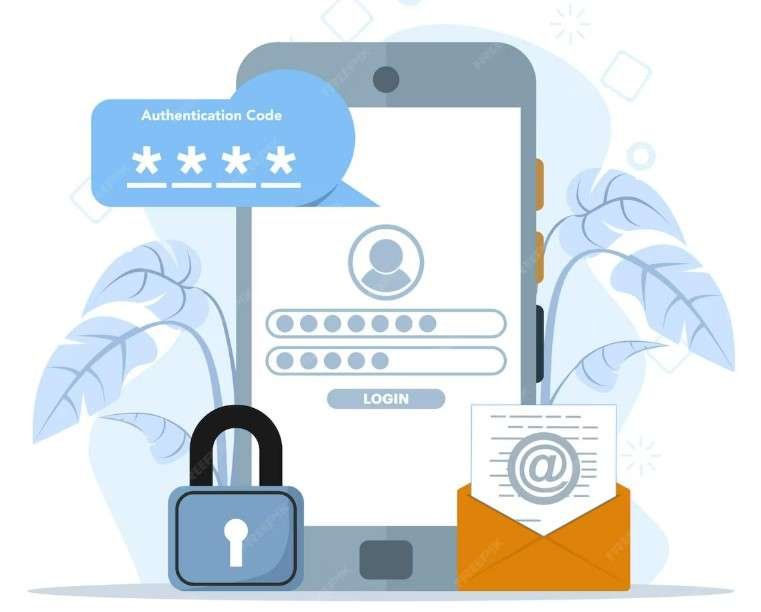

What is Multi-Factor Authentication (MFA)?
Think of your online account like your home. Your password is the lock on your front door. But what if someone manages to pick that lock?
That’s where Multi-Factor Authentication (MFA) comes in – it adds an extra layer of security. In this post, you will learn how to set up MFA along with what exactly is MFA aka multifactor authentication.
Instead of relying on just your password,MFA requires two or more verification methods to prove it’s really you, that’s what is MFA?
For example:
- Something you know:
- Password,
- PIN
- passphrase
- Something you have:
- Smartphone with an authenticator app (like Google Authenticator or Microsoft Authenticator)
- Physical security key (e.g., a USB token)
- SMS code sent to your phone
Impact-Site-Verification: 4ccd0bbb-bd4f-493d-ae8b-8494307bdde0
- Something you are: Biometrics like
- fingerprint
- facial scan
- retina scan
- voice recognition
This means even if a hacker steals your password, they still can’t get in without your second factor.
How to Set Up MFA?- Common MFA Methods
Some of the most widely used methods for the second factor include:
- SMS/Text Message Codes:
- A temporary, one-time code is sent to the user’s registered phone number. The user then enters this code into the login screen.
- Authenticator Apps:
- Apps like Google Authenticator or Microsoft Authenticator generate time-sensitive codes (TOTP – Time-based One-Time Passwords) that the user must enter.
- Push Notifications:
- A message is sent directly to the user’s mobile device, prompting them to approve or deny the login attempt with a single tap.
- Hardware Security Keys:
- Physical devices that plug into a computer’s USB port or connect via Bluetooth to provide the second factor.
The 5‑Minute Cybersecurity Lockdown Checklist
Complete 5 steps in under 5 minutes to lock down your email, phone, and WiFi
(no tech skills needed).
Why MFA is So Important
Passwords get leaked, hacked, or reused – it happens all the time.
According to cybersecurity experts, more than 80% of data breaches involve weak or stolen passwords.
With MFA turned on:
- Even if hackers get your password, they can’t log in without your phone or verification code.
- It helps stop identity theft and account takeovers.
- You get instant alerts if someone tries to access your account.
- It gives you peace of mind knowing you’ve got an extra line of defense.
What Happens If You Don’t Use MFA
If you don’t have MFA, it’s like leaving your house unlocked.
Here’s what can go wrong:
- Hackers can log in using stolen credentials from data leaks.
- They can reset your passwords and lock you out of your own accounts.
- Your private data, emails, and photos can be stolen or deleted.
- They can impersonate you to scam your contacts.
Once that happens, recovering your account can be difficult, especially if your recovery email or phone number is also compromised. Also, MFA can save your account – not just from hackers, but from you!
Think about it: how would you log in if you forgot your password and your recovery email is as dead as your old phone number? Exactly – MFA is your backup plan for when life (or memory) fails you.
It’s not impossible – it’s very much possible. Trust me, I learned that the hard way when I forgot my email password… and realized the recovery email was linked to an ancient account that had long gone extinct. (Pro tip: update your recovery email before you join me in the Hall of Regret.)
Long story short, I had to create a brand-new email address. Lesson learned – and should stick… unless I one day forget that too! 😅
How to Set Up MFA (Step-by-Step)
Now you have learned about MFA and must be thinking but how to set up MFA?
Let me make it simple for you. You can set up MFA on almost any major account – Gmail, Outlook, Facebook, Instagram, X (Twitter), etc.
For Google / Gmail:
- Go to https://myaccount.google.com/security
- Under “Signing in to Google”, click 2-Step Verification.
- Click Get Started and sign in.
- Choose your preferred method:
- Phone prompt (Google sends a pop-up to your device)
- Authenticator app (like Google Authenticator or Authy)
- Backup codes for emergencies
- Follow the prompts to finish setup.
For Microsoft / Outlook:
- Go to your Microsoft Account Security settings.
- Select Advanced security options.
- Turn on Two-Step Verification.
- Choose to verify via phone or authenticator app.
For Facebook / Instagram:
- Open Settings → Security and Login.
- Tap Use two-factor authentication.
- Choose Authentication App or Text Message (SMS).
For X (Twitter):
- Go to Settings → Security and Account Access → Security → Two-factor authentication.
- Choose one method:
- Authenticator app (recommended)
- Text message
- Security key
Discover what happens to your online accounts when you die, from Gmail and Facebook to subscriptions and banking apps — plus a simple 5-step digital will checklist.
Best Practices for MFA
- Use an authenticator app (Google Authenticator, Microsoft Authenticator) – it’s safer than SMS.
- Backup your recovery codes somewhere safe.
- Turn on MFA on all critical accounts – email, banking, and social media.
- Review and update your MFA settings once every few months.
Even if you use a strong, machine-generated password or a passphrase, it’s still smart to add MFA as a second layer of protection. It makes your account much harder to break into.
Strong passwords are great but going passwordless is even better. It removes the risk of forgetting passwords, reusing them, or dealing with password fatigue.
Final Thoughts
Multi-Factor Authentication is one of the simplest and most powerful tools to protect your online identity.
It takes less than five minutes to set up, but it can save you hours of stress and potential financial loss down the road.
Explore our curated Family safety toolbox ; free cybersecurity tools and trusted products that help protect your data, prevent identity theft, and keep your digital life safe at home or on the go.
PIN IT FOR LATER
Pin this post for later to learn how to set up MFA on your email, social media and other online accounts as MFA is your safety belt that protects your online account from hackers and scammers.