
If you’re wondering what happens if you click a phishing link, chances are you’ve just clicked one yourself.
Maybe it was a fake PayPal email, a text message about an undelivered package, or a link that looked completely normal until something suddenly felt off.
Now you’re wondering whether you’ve just made a costly mistake and what you should do next.
Before you assume the worst, know this: simply clicking a phishing link doesn’t automatically mean your accounts have been compromised or your device is infected.
Can You Get Hacked Just By Clicking a Phishing Link?
Usually, no.
In most cases, simply opening a phishing page won’t infect your device. Modern browsers and mobile operating systems have built-in protections that block known phishing websites and malicious downloads.
However, some phishing links can:
- Trick you into entering passwords or personal information
- Download malicious files to your device
- Redirect you to scam websites
- Exploit security vulnerabilities on outdated or unpatched devices
That’s why it’s important to act quickly after clicking a suspicious link.
This guide walks you through exactly what to do if you clicked a phishing link, how to assess your risk, and the immediate steps you can take to protect your accounts, devices, and personal information.
If you’re not sure whether the email was a phishing attempt, read this first- How to spot a phishing email?
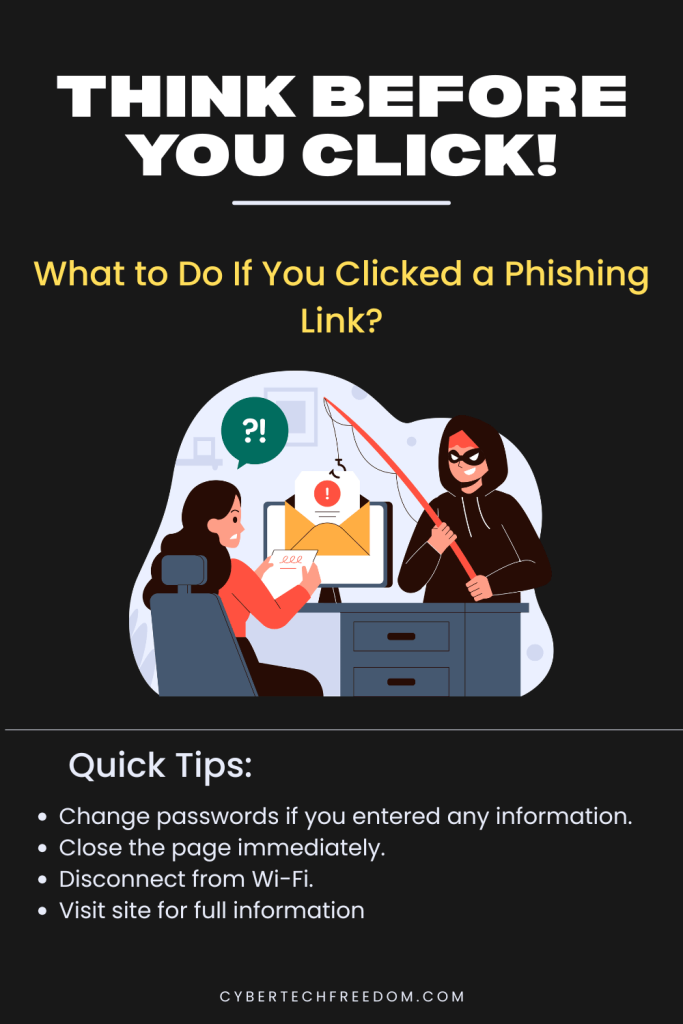
Clicked a Phishing Link? Do These 3 Things Now
- Change passwords if you entered any information.
- Close the page immediately.
- Disconnect from Wi-Fi.
1. What to do If You Click a Phishing Link : Start With These Two Steps
What to do if you clicked a phishing link depends on what happened after you clicked. Choose the scenario below that best matches your situation
Step 1: Don’t interact with the page. If the link is still open, do not type anything, click any buttons, or fill in any forms. Close the tab immediately. On desktop, press Ctrl + W (Windows) or Command + W (Mac). On iPhone, swipe the tab closed in Safari.
Step 2: Disconnect from the internet. Turn off your Wi-Fi or switch your phone to airplane mode. If malware started downloading when you clicked, cutting your connection can stop it from completing the download or sending data back to the scammer.
Do both of these first, then work out which of the three scenarios below matches what happened.
2. You clicked on a phishing link and closed it immediately
Scenario 1: You clicked on a phishing link, saw a suspicious page, and closed it without doing anything.
This is the best-case outcome and it’s more common than you’d think.
If you clicked on a phishing link, a page loaded (or tried to load), and you closed it immediately without entering any information or downloading anything, your risk is low.
Modern browsers like Chrome, Safari, and Firefox have built-in phishing protection that blocks millions of malicious pages every day. If you saw a red warning screen saying “Deceptive site ahead” or “This site may harm your computer,” your browser did its job and the threat was blocked before it reached you.
What to do on a Windows PC or Mac:
- Run a full antivirus scan, not a quick scan, a full one. Windows Defender (built into Windows 10 and 11) works well for this. On Mac, Malwarebytes Free is a reliable free option.
- Clear your browser’s cookies and cache. In Chrome: Settings → Privacy and Security → Clear browsing data. Check “Cookies and other site data” and “Cached images and files,” then click Clear data.
- Keep an eye on your accounts over the next few days. Unexpected login alerts or password reset emails you didn’t request are a sign that something may have been captured.
What to do on iPhone:
Built-in iOS protections make malware from a single click on iPhone extremely unlikely — Apple’s sandboxing means websites can’t install software without your permission. But still do these two things:
- Clear your Safari browsing history. Go to Settings → Safari → clear history and website data.
- If the link came through a Gmail or Outlook app, check your inbox filters to make sure no forwarding rules were quietly added.
What to do on Android:
Android is slightly more open than iPhone, so it’s worth an extra check:
- Go to Settings → Apps and look for anything you don’t recognise that may have been installed recently.
- Run a scan using Google Play Protect: open the Play Store → tap your profile icon → Play Protect → Scan.
- Clear Chrome’s cache: Chrome → three dots → Settings → Privacy and Security → Clear browsing data.
If none of those signs appear within 48–72 hours, you’re almost certainly in the clear.
3. You entered your personal information
Scenario 2: You entered your username, password, or personal information
This is the scenario that needs urgent action. If you clicked a phishing link and then typed anything like a password, your email address, credit card number, Social Security number, or any personal details on the page it took you to, treat your information as compromised and act fast.
The reason urgency matters: scammers often have automated systems that use captured credentials within minutes of them being entered.
If you entered a password:
- Change that password immediately on the real website. Go there by typing the address yourself, not by following any link. Change it from a different device if you can.
- Change it anywhere else you use the same password. Password reuse is exactly what scammers count on. If your Netflix password is the same as your email password, change both.
- Enable two-factor authentication (2FA) on the account if you haven’t already. This means even if a scammer has your password, they still can’t get in without a code sent to your phone.
- Check your account’s recent activity. Most platforms, Google, Facebook, Apple, your bank , have a section where you can see recent logins and active sessions. Look for anything unfamiliar and sign out those sessions.
If you entered credit card or bank details:
- Call your bank or card issuer immediately. Tell them you believe your card details were entered on a phishing site. They can flag the card for unusual activity and issue you a new one. Most banks have a 24-hour fraud line on the back of your card.
- Monitor your statements closely for the next 30 days. Flag any transaction you don’t recognise, no matter how small as scammers often test stolen cards with tiny charges before larger ones.
If you entered your Social Security number or other identity information:
- Place a fraud alert with the three major credit bureaus – Equifax, Experian, and TransUnion. This is free and makes it harder for someone to open new accounts in your name.
- Consider a credit freeze. A credit freeze is stronger than a fraud alert because it prevents anyone (including you) from opening new credit accounts until you lift it. Also free. See our full guide: How to freeze your credit after Identity Theft
- Check IdentityTheft.gov. The FTC’s official site for identity theft victims walks you through a personal recovery plan step by step.
How Safe Is Your Digital Life?
Take our free 2-minute Digital Safety Check and find out how well you know the everyday habits that help protect your accounts, devices and personal information.
4. Something downloaded to your device
Scenario 3: If clicking the phishing link triggered a download, a file appeared in your Downloads folder, your browser asked you to open or save something, or you noticed a file you don’t recognize, the risk level is higher and you need to act before reconnecting to the internet.
Do not open the downloaded file. Even if it’s named something innocent like “invoice.pdf” or “receipt.docx.”
What to do:
- Delete the downloaded file immediately: Find it in your Downloads folder and delete it. Then empty your Recycle Bin or Trash.
- Run a full antivirus scan while still offline if your antivirus has that capability (Windows Defender can). This way, any malware that did install can’t contact a remote server while being scanned.
- Reconnect to the internet and run a second scan using a free online tool. Malwarebytes Free is one of the most reliable options for a second-opinion scan on Windows.
- Watch for signs of infection over the following days: your device running slower than usual, unfamiliar programs appearing, pop-ups you can’t close, or your browser opening pages you didn’t navigate to.
If you use the same device for work, tell your IT team before reconnecting to the work network. One infected device can spread malware to other machines on the same network.
While you are doing all these, DO NOT forget to Report the phishing email to your respective government organization or to Gmail, outlook or apple.
5. How to check if your accounts have been compromised
Whether or not you entered any information, it’s smart to do a quick check after you’ve clicked a phishing link, even if you think everything is fine.
Check for unauthorized logins.
On Google: go to myaccount.google.com → Security → Your devices. On Facebook: Settings → Security and Login → Where you’re logged in. On Apple: Settings → your name → scroll down to see signed-in devices.
Check if your email has been in a known data breach.
Go to haveibeenpwned.com and enter your email address. This free tool shows you whether your email and password have appeared in any known data breaches, not just from this incident, but ever. If any results come up, change the password for those accounts immediately.
More on this: What to do if your email has been hacked?
Check your email inbox rules.
Scammers who get into an email account sometimes set up forwarding rules to silently copy all your emails to themselves. This is especially worth checking if the phishing link came through Gmail.
In Gmail: Settings → See all settings → Filters and Blocked Addresses.
Also check Settings → See all settings → Forwarding and POP/IMAP to make sure your emails aren’t being forwarded to an unknown address.
In Outlook: Settings → View all Outlook settings → Mail → Rules. Delete any rules you didn’t create.
6. How to protect yourself from phishing links in the future
Clicking a phishing link once doesn’t make you careless. These scams are designed by professionals to fool people. But a few simple habits make it much harder to fall for one again.
Hover before you click. On desktop, hover your mouse over any link before clicking to see the real destination URL at the bottom of your browser. If the URL looks suspicious or doesn’t match the sender, don’t click.
Go directly to websites instead of clicking links. If you get an email claiming there’s a problem with your PayPal account, don’t click the link. Open a browser, type paypal.com, and log in there. If there’s a real issue, it’ll show up in your account.
Use a password manager. Password managers generate unique, strong passwords for every account which means if one account is compromised, the others stay safe.
Enable 2FA everywhere you can. Two-factor authentication is the single most effective thing you can do to protect your accounts. Even if a scammer gets your password, they can’t log in without the second factor.
One more layer of Safety: AURA
Many phishing victims discover the real damage weeks later, when stolen credentials appear in data breaches or criminals start opening accounts in their name.
Identity monitoring helps you spot those warning signs before they become expensive problems. Aura is one of the best identity monitoring apps that monitors your personal details across the web and the dark web, and alerts you the moment your information appears somewhere it shouldn’t.
That means you don’t have to wait until your account is drained or your identity is stolen to find out something went wrong.
Knowing what to do if you clicked a phishing link can make the difference between a close call and a compromised account. The sooner you act, the better your chances of protecting your personal information and preventing further damage.
FAQ : what to do if you clicked a phishing link
Can you get hacked by clicking a phishing link?
Sometimes, but not always. Simply clicking a phishing link doesn’t automatically mean your device has been hacked. The biggest risks come from entering your login details, downloading malicious files, or visiting a website that exploits an unpatched security vulnerability. If you clicked a phishing link, stop interacting with the page and take steps to secure your accounts and device.
What happens if I clicked a phishing link on my iPhone?
In most cases, nothing will happen if you simply clicked the link. iPhones have strong built-in security that makes malware from a single click unlikely. However, if you entered your password, downloaded a file, or installed a configuration profile, you should secure your accounts immediately
What happens if I clicked a phishing link on Android?
Simply clicking a phishing link doesn’t usually infect your Android phone. The biggest risks come from downloading a malicious app, entering your login details, or installing software from outside the Google Play Store. If you did any of these, scan your device and change your passwords.
Should I change my password after clicking a phishing link?
If you entered your password on the phishing website, change it immediately on the real website. If you only clicked the link and didn’t enter any information, you may not need to change your password, but it’s still a good idea to monitor your accounts for suspicious activity.
How do I know if a phishing link infected my device?
Watch for signs such as unexpected pop-ups, unfamiliar apps, poor performance, battery drain, or browser redirects. Run a security scan on your device if possible. If you only clicked the link and didn’t download anything, your risk of infection is generally low.
Can a phishing link steal my information without me typing anything?
Usually, no. Most phishing scams rely on tricking you into entering passwords, payment details, or other personal information. However, some malicious websites can exploit unpatched software vulnerabilities, so it’s important to keep your device and browser up to date.
More read for Your Digital safety Journey
What to Do If Your Email Has Been Hacked
What is SIM Swapping and how to prevent it ?
Best Gifts to Stay Safe Online for You and Your Loved Ones
Everything to keep Your Phone secure.