
You’ve spotted a suspicious email sitting in your inbox. Maybe the sender address looks slightly off, or it’s asking you to verify your bank details out of nowhere. You’re pretty sure it’s a scam but what do you actually do with it?
Deleting it isn’t enough. Knowing how to report phishing emails takes less than 30 seconds and does three things: it removes the threat from your inbox, alerts your email provider so they can block the sender for millions of other people, and helps law enforcement track phishing campaigns.
This guide shows you exactly how to report a phishing email in Gmail, Outlook, and Apple Mail on desktop and on your phone plus where to report it to the government if money or personal information was involved.
Before reporting: Don’t click any links, download attachments, or reply to the email. You can report a phishing email without interacting with its contents.
First, learn how to spot a phishing email.
1. Should you report phishing emails or just delete them?
Report them. Always.
When you delete a phishing email without reporting it, the scammer’s email address stays active. They can keep sending the same scam to thousands of other people. When you report it, your email provider flags the sender, analyzes the message, and uses that data to block future emails from the same source for you and for everyone else using the same platform.
Reporting a phishing email in Gmail, for example, sends a copy to Google’s abuse team. Reports help Google identify phishing campaigns, improve Gmail’s spam and phishing filters, and in some cases disable abusive accounts or domains.
And no, you don’t need to be 100% sure it’s a phishing email before reporting it. If something feels off, report it. Email providers review every submission before taking action, so a false alarm causes no harm.
2. How to report a phishing email in Gmail
Gmail makes this straightforward. The built-in report button is in the same menu you use for everything else.
On desktop (Gmail in your browser):
- Open the suspicious email.
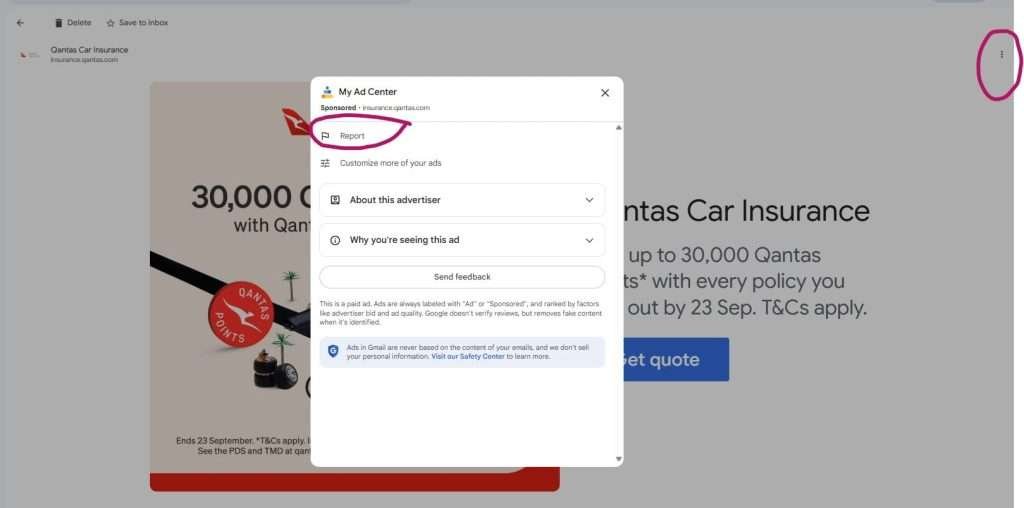
- Click the three vertical dots (⋮) next to the Reply button in the top right of the email.
- Select Report phishing from the dropdown menu.
- Click Report Phishing Message when the confirmation box appears.
That’s it. Gmail moves the email out of your inbox and sends a report to Google’s abuse team.
On iPhone (Gmail app):
- Open the Gmail app and tap the suspicious email.
- Tap the three vertical dots (⋮) in the top right corner of the email.
- Tap Report phishing.
- Confirm when prompted.
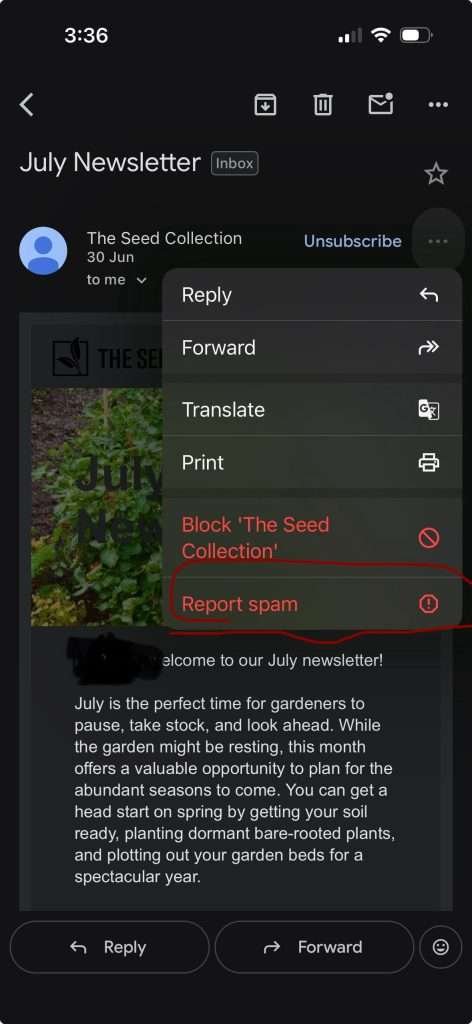
On Android (Gmail app):
The steps are the same as iPhone, tap the three dots inside the email, then select Report phishing.
Tip: If you accidentally moved an email to Spam instead of reporting it as phishing, go back and report it properly. Spam and phishing are treated differently — phishing reports go to Google’s security team, spam reports just affect your own inbox filters.
Optional extra step: After reporting inside Gmail, forward the email to reportphishing@apwg.org (the Anti-Phishing Working Group). This sends the scam to a global database used by law enforcement and cybersecurity researchers. You can forward it directly no need to avoid clicking links since you’re not opening anything new.
3. How to report a phishing email in Outlook
Outlook has a dedicated Report button built into the toolbar for both desktop and web versions.
On Outlook desktop (Windows):
- Select the suspicious email in your inbox — you don’t need to open it.
- Click the Report button in the top toolbar ribbon.
- Select Report phishing from the dropdown.
- Click Report to confirm.
Outlook removes the email from your inbox and forwards it to Microsoft’s security team.
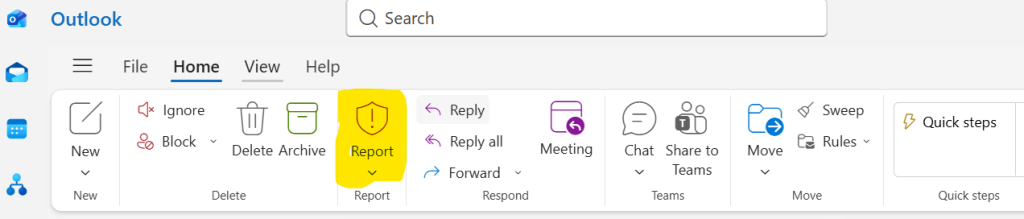
Can’t see the Report button? It may be called “Report Message” depending on your version of Outlook. If you still can’t find it, right-click the email in your inbox and look for Report or Report phishing in the context menu.
On Outlook Web (browser):
- Right-click the suspicious email in your inbox.
- Select Report from the menu.
- Choose Report phishing.
- Click Report to confirm.
On iPhone or Android (Outlook app):
- Open the Outlook app and tap the suspicious email.
- Tap the three dots (ellipses) at the top of the message.
- Tap Report Junk.
- Select Phishing from the options.
- Tap Report to confirm.
Optional extra step: Forward the email to abuse@messaging.microsoft.com for additional review by Microsoft’s team.
4. How to report a phishing email in Apple Mail
Apple Mail handles phishing reporting differently from Gmail and Outlook and it’s worth knowing the limitation upfront.
Apple Mail does not have a dedicated “Report phishing” button. The closest built-in option is marking the email as Junk, which moves it out of your inbox and tells Apple’s filters about the sender. But it doesn’t specifically flag the email as a phishing attempt. Unlike Gmail and Outlook, Apple relies more heavily on Junk reporting and reports sent directly to Apple Security rather than offering a dedicated phishing button.
On Mac (Apple Mail app):
- Select the suspicious email in your inbox, don’t open it if you can help it.
- Go to Message in the top menu bar.
- Select Move to Junk.
Or simply right-click the email and select Move to Junk.
On iPhone (Apple Mail app):
- Swipe left on the suspicious email in your inbox.
- Tap More.
- Select Move to Junk.
The important extra step for Apple Mail users:
Since Apple Mail doesn’t have a direct phishing report button, this forward is essential:
Forward the suspicious email to reportphishing@apple.com if it’s impersonating Apple (fake iCloud alerts, fake App Store receipts, fake Apple ID warnings). Apple’s security team reviews every submission.
For phishing emails impersonating other companies like banks, PayPal, Amazon use the government reporting options as below.
5. Where else to report phishing emails
Reporting the email in Gmail, Outlook, or Apple Mail helps improve your email provider’s filters. If you clicked the link, lost money, or shared personal information, you should also report the scam to the appropriate authorities.
Report to the Anti-Phishing Working Group (Worldwide)
Forward the phishing email to reportphishing@apwg.org.
The Anti-Phishing Working Group (APWG) collects phishing reports from around the world and shares threat intelligence with internet providers, cybersecurity companies, and law enforcement. Anyone can submit phishing emails, regardless of where they live.
Report to your country’s cybercrime or consumer protection agency
Many countries have an official website where you can report phishing, online scams, or identity theft.
For example:
| Country | Where to report |
|---|---|
| United States | FTC (ReportFraud.gov) or FBI IC3 |
| United Kingdom | Action Fraud |
| Australia | Scamwatch |
| Canada | Canadian Anti-Fraud Centre |
| New Zealand | Netsafe |
| European Union | Your national cybercrime or consumer protection agency |
Not listed?
Search Google for: report phishing email + your country or cybercrime reporting + your country
You’ll usually find the official government reporting website in the first few results.
Report it to the company being impersonated
If the phishing email pretends to be your bank, PayPal, Amazon, Microsoft, Apple, or another company, report it to them as well.
Many large organisations have dedicated email addresses or online forms for reporting phishing attempts.
A quick search for: [Company name] report phishing, will usually take you to the correct page.
How Safe Is Your Digital Life?
Take our free 2-minute Digital Safety Check and find out how well you know the everyday habits that help protect your accounts, devices and personal information.
6. What happens after you report a phishing email?
It helps to know your report actually does something.
When you report a phishing email in Gmail, Google’s abuse team reviews it. If confirmed as phishing, they block the sender domain, update Gmail’s filters for all Gmail users, and may submit the phishing website to Google Safe Browsing which triggers warning screens in Chrome, Firefox, and Safari for anyone who tries to visit that site.
When you report through Outlook, Microsoft uses the data to improve Exchange Online Protection and Microsoft Defender, the filters that screen emails for millions of business and personal accounts.
Reports to APWG are pooled into a global threat database. Cybersecurity companies, internet providers, and law enforcement agencies pull from this database to block phishing infrastructure worldwide.
Your one report genuinely contributes to all of this. It’s not just good for you but it makes the whole system smarter.
7. What to do after reporting
Once you’ve reported the email, three final steps:
- Delete it. After reporting, delete the email from your inbox and empty your Trash or Deleted Items folder. You don’t need to keep it.
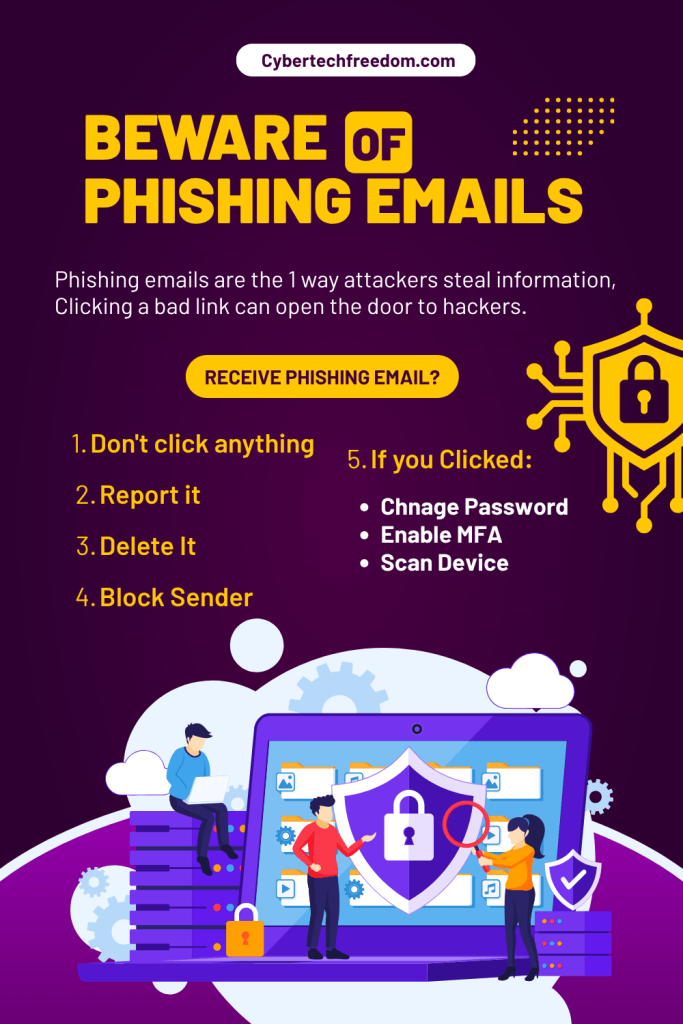
- Block the sender. In Gmail, Outlook, and Apple Mail, you can block the sender to prevent future emails from that address reaching your inbox. Right-click the email (or use the three-dot menu) and look for Block or Block Sender.
- Don’t click anything in the meantime. If you haven’t already clicked a link or downloaded an attachment in the email — don’t. Reporting the email does not make it safe to interact with.
If you think you may have already clicked a link or entered information before you realized it was a scam, read this next : What to do if you clicked a phishing link
One more layer of protection
Reporting phishing emails protects other people. Aura protects you. Even after a phishing email is deleted and reported, your personal information may already be in circulation from a previous breach you don’t know about yet.
Aura monitors your personal details across the dark web and data breach databases, and sends you an alert the moment your information appears somewhere it shouldn’t so you can act before a scammer does.
Spotted a scam email but not sure it’s definitely phishing? Report it anyway. Email providers review every report before taking action – a false alarm causes no harm, and a real scam caught early protects a lot of people.