
CAPTCHA Scam or Cyber attack? How to Tell If a “Click Allow” Pop-Up Is Dangerous
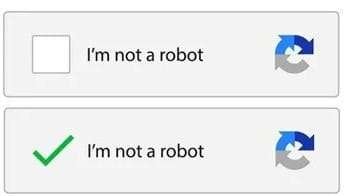
We’ve all clicked “I’m not a robot” without thinking twice. It’s a security feature designed to stop bots and spam. I even use it on my own site. It’s supposed to protect us.
But here’s the problem…
We trust it too much. Clicking that little box has become pure muscle memory. You see it, you click it, you move on.
And that’s exactly what scammers are counting on.
A Click Allow pop-up scam, also known as a fake CAPTCHA scam, takes something you already trust and twists it just enough to make you lower your guard. No hacking skills. No complex tools. Just a well-designed trap and one distracted click.
These fake “Click Allow” pop-ups are one of the fastest-growing browser scams right now and most people don’t realize what happens after they click.
Disclosure: Some of the links on this page are affiliate links. This means that if you click through and make a purchase, we may earn a small commission — at no extra cost to you. We only recommend products, tools, and services that we believe provide real value for online safety, privacy, and identity protection.
As an Amazon Associate, we earn from qualifying purchase.
What Is a Click Allow Pop-Up Scam?
A Click Allow pop-up scam (fake CAPTCHA scam) is a cyberattack where a website tricks you into clicking “Allow” to prove you are human. Instead of verifying anything, this gives the site permission to send browser notifications, including fake virus alerts, phishing links, and scam ads. Clicking “Allow” won’t hack your device instantly, but it exposes you to ongoing scams, data theft attempts, and dangerous redirects.
The safest action is to close the page immediately and never allow notifications from unknown sites.
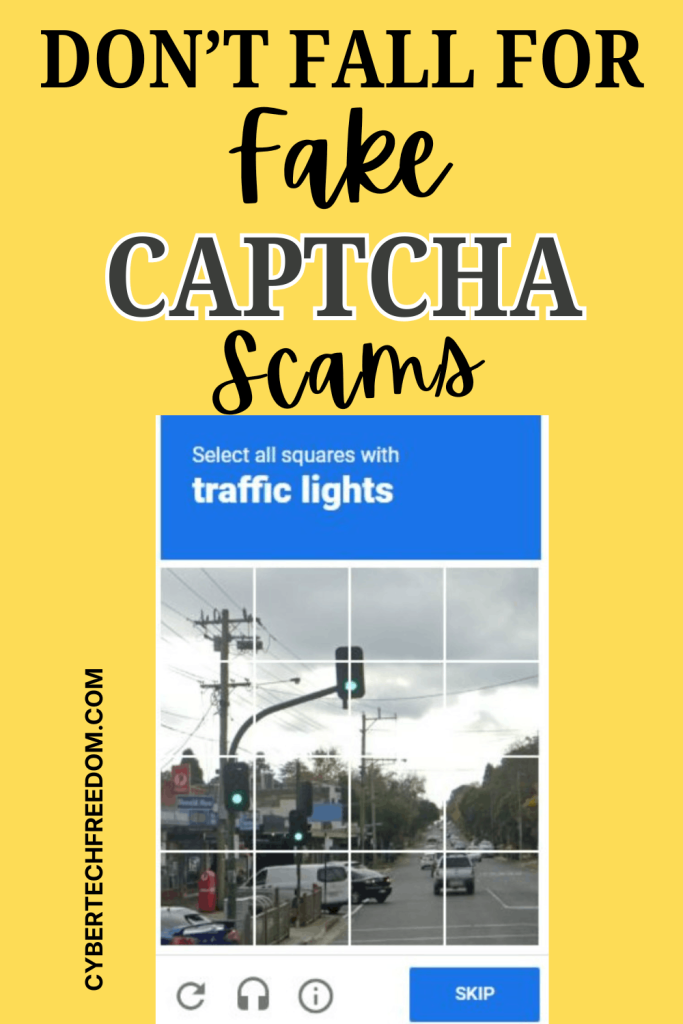
The Quick Version: Real CAPTCHAs confirm you’re human by having you click fire hydrants or crosswalks.
Scam CAPTCHAs try to trick you into clicking “Allow” on notifications or pasting code into your computer. If a verification page asks you to do anything other than click a box/image—close the tab.
What to do immediately if you clicked “Allow”
- Go to browser settings
- Remove notification permissions
- Clear suspicious sites
How to stop spam notifications (Chrome, Safari, Edge)
- Chrome: Settings → Privacy and Security → Site Settings → Notifications.
- Edge: Settings → Cookies and site permissions → Notifications.
- The Goal: Look for the “Allow” list and Remove any site you don’t 100% trust.
What happens if you click “allow” on a pop-up?
Clicking Allow doesn’t infect your computer immediately. Instead, it gives the website permission to send browser notifications. Scammers abuse those notifications to bombard you with fake virus alerts, phishing links, and misleading ads even after you’ve left the website.
You land on a page and see something like:
“Click Allow to confirm you are not a robot”
“Press Allow to watch the video”
“Enable notifications to continue”
Looks harmless, right?
Here’s what’s really happening behind the scenes
What actually happens when you click “Allow”
You’re not verifying anything. You’re giving that website permission to:
- Send unlimited browser notifications
- Push fake virus warnings
- Show “Your system is infected!” alerts
- Redirect you to phishing pages
- Promote shady apps, crypto scams, or fake giveaways
“Allowing Notifications” is essentially giving the site a permanent billboard on your desktop. And the worst part? These notifications show up even when you’re NOT on that website.
If a page asks you to click Allow to prove you’re human or continue browsing, it’s almost certainly a scam.
Why didn’t my antivirus stop this?
Most antivirus software doesn’t block browser-based scams like Click Allow pop-ups because no malware is installed yet.
These scams rely on social engineering. They trick you into giving permissions or running commands yourself. Antivirus tools mainly detect files and programs, not manipulative pop-ups. That’s why the safest defense is awareness and avoiding the click altogether.
what to do if your Facebook account gets hacked and above all how to spot it?
Clipboard Hijack Trick (This One Is Sneaky)
This one feels like a “tech support step”… but it’s actually dangerous.
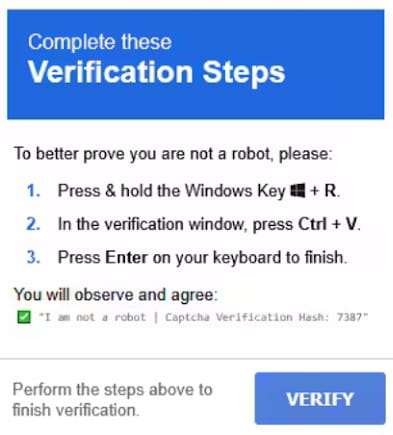
You might see instructions like:
“Press Windows + R” (Win + R)
“Paste this to verify” ( CTRL + V)
“Click Enter to continue” (Enter)
Seems random, right? That’s because it is.
What’s really happening:
- The website secretly copies a malicious command to your clipboard
- When you press Ctrl + V, you paste it
- When you hit Enter… you execute it
You’ve just run a PowerShell command on your own computer without realizing it. So Cruel.
This can:
- Download malware
- Open backdoors
- Steal saved passwords
And no, your antivirus might not catch it instantly. That’s what makes this one especially dangerous.
The Rule: If a website asks you to touch your keyboard to “verify,” it is 100% a scam.
If you often browse on public WiFi, scammers can exploit this even more – using a secure connection like VPN can reduce that risk. I recommend Surfshark VPN.
Fake Login Page After CAPTCHA
Fake login pages often copy the real site’s branding almost perfectly. Always check the full website address before entering your password.
- You complete a CAPTCHA
- You feel safe (“okay, site is legit”)
- Then you’re redirected to a login page
Everything looks normal:
- Bank logo
- Email login
- Even the URL looks right at first glance
But it’s a fake.
The moment you enter your details, they go straight to scammers. And this is how people lose:
- Email accounts
- Social media accounts
- Even banking access
Check what to do if you email account gets hacked?
“Download to Continue” Trap
Another variation:
“Verification required before download”
“Complete CAPTCHA to unlock file”
You follow the steps… and boom:
You download:
- Fake software
- Browser extensions
- Malware disguised as a file
Sometimes it even looks like a PDF or video—but it’s not.
10 Warning Signs a Download on Your Phone Could Be Dangerous
Quick Reality Check (Remember This Rule)
Real CAPTCHA = click images or tick a box
Scam CAPTCHA = asks you to allow, install, or run something
If it feels like extra effort… it’s probably a trap.
How to Protect Yourself (Without Becoming Paranoid)
| If you see this… | IT’S A SCAM | IT’S LIKELY SAFE |
| Action | “Click Allow to continue” | Click the “I’m not a robot” box |
| Keyboard | Pressing Win + R or Ctrl + V | No keyboard needed |
| Images | Blurred content behind a pop-up | Selecting traffic lights/buses |
| Asks for | Browser Notification access | Nothing but the click |
You don’t need to be “techy” to stay safe. Just follow this:
1. Never click “Allow” to verify anything
Do not click on “allow” on the click allow pop-up scams. That’s the biggest one.
No legit site requires this for CAPTCHA.
2. Clean up browser notifications (most people forget this)
If you’ve clicked “Allow” before:
- Go to browser settings
- Find Notifications
- Remove anything you don’t recognize
This alone can stop 90% of the spam.
Note: If you ran a command (Win + R), skip to Step 5 immediately. Your browser settings won’t save you there!
3. Avoid sketchy sites
Most of these scams live on:
- Free streaming sites
- Torrent/download pages
- Random redirected links
If the site feels “off”… trust that instinct.
4. Keep your setup basic but secure
You don’t need 10 tools. Just:
- Updated browser
- Reliable antivirus
If you think have already clicked on allow on your phone then check our Phone Security Hub. It has everything you need to keep your smart phone safe.
5. If you already fell for it (don’t panic)
Do this immediately:
- Disconnect from internet
- Run a full system scan
- Remove suspicious extensions/apps
- Change important passwords
The faster you act, the less damage.
Frequently Asked Questions About Click Allow Pop-Up Scams
1. What is a Click Allow pop-up scam?
A Click Allow pop-up scam is a fake CAPTCHA or verification trick that asks users to click “Allow” to continue. Instead of verifying identity, it enables spam notifications, scam ads, and phishing attempts.
2. What happens if I click “Allow” on a fake CAPTCHA?
If you click “Allow,” the website gains permission to send browser notifications. These can include fake virus alerts, scam messages, and links designed to steal your personal information.
3. Is the Click Allow pop-up a virus?
No, the pop-up itself is not a virus, but it can lead to harmful content. It is a form of social engineering used to expose users to scams, malware downloads, or phishing attacks.
4. How do I remove Click Allow pop-up notifications?
You can remove them by going to your browser settings, finding the notifications section, and blocking or removing suspicious websites that you previously allowed.
5. How can I tell if a CAPTCHA is fake?
A fake CAPTCHA often asks you to click “Allow,” install something, or follow unusual steps. A real CAPTCHA only asks you to select images or tick a box.
6. Are Click Allow scams dangerous?
Yes, they can be dangerous because they expose users to ongoing scam notifications, phishing attacks, and potential malware, even after leaving the original website.
Final Thought (This Is Why It Matters)
CAPTCHA scams don’t break into your system…
They wait for you to open the door yourself and they’re getting better at it.
But now you know exactly what to look for. So next time you see:
“Click Allow to continue”
You’ll know what to do. Close the tab. Move on. Stay in control.
Have you seen one of these “Click Allow” pop-ups recently?
What site were you on when it happened? Drop it in the comments, your experience could help someone avoid getting scammed.
Continue your security journey:-
Is My Phone Hacked? 10 Warning Signs Your Phone Has Been Compromised
Can Hackers Access Your Data on Cruise Wi-Fi? What Travelers Should Know
What to Do Immediately After Identity Theft (Step-by-Step Recovery Guide)
Explore our curated Family safety toolbox ; free cybersecurity tools and trusted products that help protect your data, prevent identity theft, and keep your digital life safe at home or on the go.

Great information on some of these scams going around. It’s incredibly annoying to see these (I feel like it’s something new everyday) but the tips you suggested will certainly help us avoid any unwanted data exchange. Thanks!
Great post! I have always wondered about this, even when I was designing my website. Thanks for sharing!
This is very valuable information. With all this new technology, we have to be diligent in protecting our devices.
Thank you for these great tips! These scams are scary and I appreciate the heads-up and advice.